 Everywhere you look, people are talking about WordPress and of course creating websites using WordPress. There are many other options, naturally and I will be discussing a number of these in this blog. However, it is hard to look past the functionality that WordPress offers. And, don’t worry; if you a new to building websites, this WordPress Development Tutorial will guide you through it.
I have coded sites from scratch, I have used text editors, HTML editors and I have purchased WYSIWYG editors. But I find that it is much faster to get started with a website building environment like WordPress and I absolutely love all of the plugins that are available (most of them for free) to add the functionality that I am looking for.
For example, in the past, I have often spent weeks coding and tweaking scripts to get a site search working the way I want it. When I am creating a website with WordPress, the site search is already there the moment that I set up my static site or blog. If I want to add modifications to how the search operates, there is a plethora of plugins available to upload to my site with the click of a button.
With respect to ease, I think most software tools can be confusing for beginners, regardless of how powerful the software may be. So it is my intention to provide a step-by-step guide that you can refer to when building a WordPress site, a guide that you can return to anytime in the future when setting up a WordPress site.
How to Create a Website in WordPress Step by Step
How to make a WordPress website is really quite straightforward if you have a simple tutorial to follow. But first you need to have a domain name and a place to house your site. The following guide takes you from those initial stages to selecting your theme, the WordPress installation step by step and then publishing your first post or page.
Step 1 – Select Your Domain Name and Hosting Service
If you haven’t already selected your domain name and hosting solution, you can follow the advice given in these posts:
As outlined in these 2 posts, I have been using Go Daddy for all of my domain names and Lunarpages for my hosting and have been very satisfied with the service in each case.
Once you have a domain name and a hosting provider then you are now ready to tackle how to create WordPress websites with the following tutorial.
Step 2 – Choose Your WordPress Theme
The theme defines the look and feel that you want for your site. Instead of experimenting with different color combinations and font types for your site, you can preview a ready-made theme and then select the one you like.
There are:
- Free Themes.
- A collection already included with WordPress.
- Endless selections across the Web to choose from.
- Paid Themes (Premium Templates).
The WordPress themes I looked at were priced around the $39 to $80 mark for a single theme, more for a package of themes in some cases but they vary considerably.
You can find lots of free themes at wordpress.org or you can simply search for “free WordPress themes” using your favorite search engine.
I must say that when I went looking for a free theme, I was overwhelmed by all of the choices. I ended up wasting weeks looking for just the right theme. When I eventually chose one, I found there were aspects that weren’t quite what I wanted so I wasted some more weeks tweaking with the code itself to customize it and to get it to validate as correct HTML. The result was okay but I still felt it lacked that professional, polished finish. Of course, this is just that particular free theme and I have since found others that impressed me. There are thousands to choose from and you will easily find a nice theme to start with.
I decided, after all of those wasted weeks, to go with a paid theme. Then of course I spent additional weeks researching the paid (premium) themes looking for what I wanted at an affordable price. But I think that this research has paid off as I have been very happy with my selection. The theme I settled on was a StudioPress Theme for WordPress. I wasn’t interested in a developer’s pack so instead I selected a single theme that I can use, and of course modify, on any of my sites.
What Do I Like About My StudioPress Theme?
- It looked professional right away.
- There is a forum for support.
- There are tutorials provided.
- It is easy to customize.
- I am notified of updates as they become available, for no additional cost.
Step 3 – Install WordPress
Most hosts offer a click-option (Fantastico) that will setup WordPress for you.
- Using the instructions sent to you by your hosting company, login to your account and go to cPanel.
- Look for the Fantastico icon and click on it.
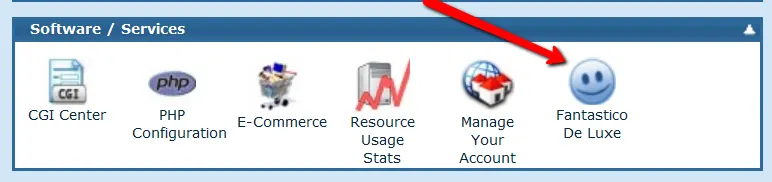
Select WordPress from the list of options that appear on the next screen. (It will probably be listed under Blogs on the left hand side.)
- Click on Installation (or New Installation).
- Leave “Install in Directory” blank. (You could use this if you were just looking to have part of your website set up as a blog.)
- Change Admin to a username of your own choice. This will be more secure than leaving it as Admin.
- Enter a new password.
- Enter your Admin nickname that will be used on posts and comments. This will be visible to visitors to your site.
- Finally, click the Install WordPress button.
You will then be provided with a summary of what has been created and asked to click on Finish Installation. - The next screen reminds you of your admin and password details which you need to keep. It also provides the path for entering the admin area in order to set up the theme and content on your website. It is always in the format www.yoursite.com/wp-admin. You simply replace yoursite.com with your domain name and extension.
Step 4 – View Your Site in a Browser
Now the real fun starts when building a WordPress site the moment you start styling your site to suit your preferences.
But of course you will want to take a sneak preview of your site as it appears right now. Just enter your domain name in the browser and it will appear with the default theme already set up for you.
http://www.yoursite.com
(Just replace yoursite.com with the domain name that you have registered.)
You will see your site in the standard theme that is currently provided by default when you first install WordPress.
Step 5 – Set Up Your Own Theme
Login to your admin panel via: www.yoursite.com/wp-admin
You will then be taken to your WordPress Dashboard.
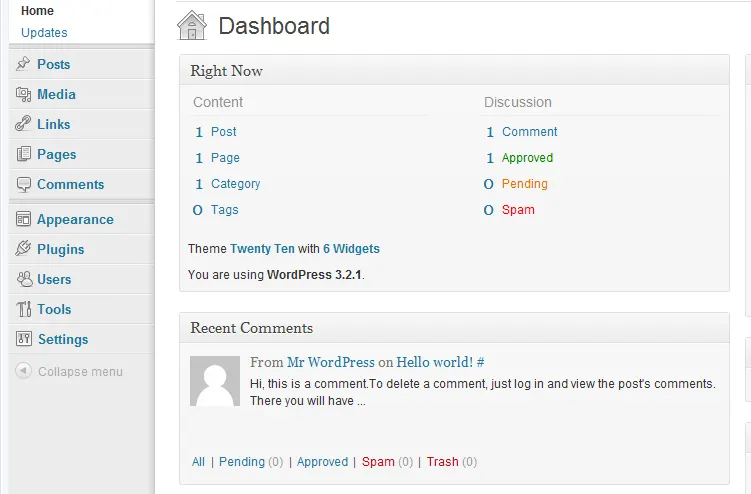
Here you can try out the themes that are already provided for you within WordPress. Or you can upload the theme that you have found or purchased from another site on the Internet.
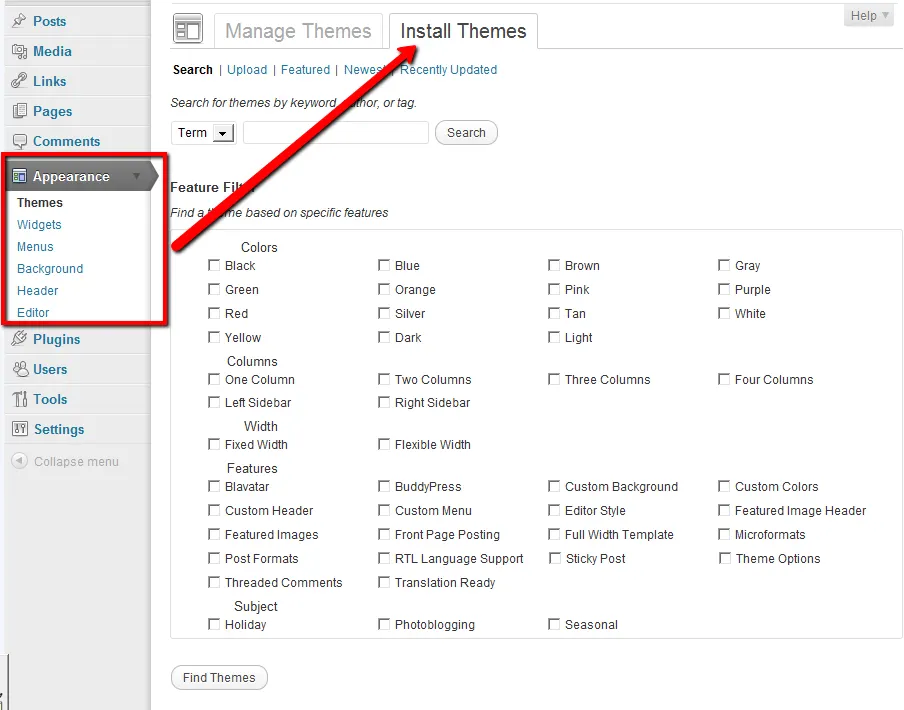
Click on Appearance – Themes. Select Install Themes and then browse the multitude of themes available. You can preview any of them to see how your site would look. If you find one you like, just click Install underneath the screen shot and then Activate. If you change your mind, simply come back to the list and select another to activate. It is that easy.
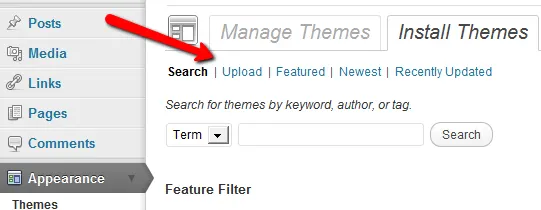
Alternatively if you already have a theme that you have purchased or downloaded from another site, simply select the Upload option:
Step 6 – Settings
Find Settings in the left panel and then click on Writing. While you are building your site and tweaking it to suit you can “turn off” pinging. You will find 1 address already listed by default in the Update Services section. You can just remove that address until you are ready to notify ping services.
Step 7 – Make URLs Tidy
By default WordPress creates URLs that have question marks and numbers in them, similar to this:
http://yoursite.com/?p=N
To allow your pages to rank better in the search engines, it is better to clean up these URLs by setting the permalinks before you start.
Click on Settings – Permalinks in the left menu of your dashboard.
Click on Custom Structure and enter the following:
/%postname%/
Step 8 – Create Your First Page or Post
If Building a Static Site
If you have decided that your site will be a static site (see Planning Your Website) then specify that you front page will be a static page by choosing the menu options: Settings – Reading
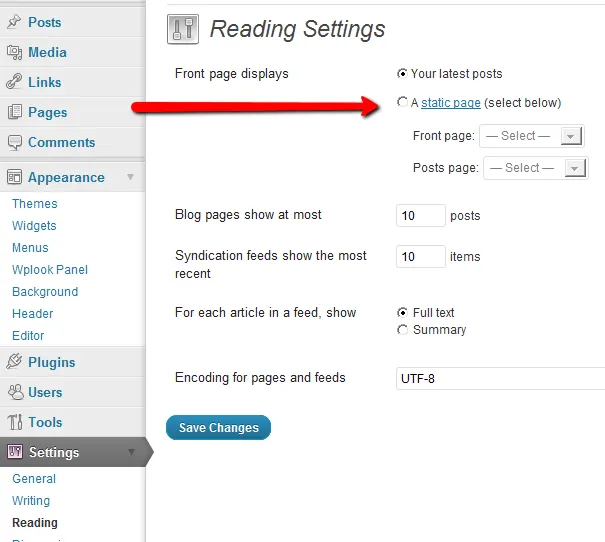
Now you are ready to build your site; just add your first page by clicking on the options in the left hand menu.
Step 9 – Add a Favicon (Opional)
This step is definitely optional at this point and is probably best done after you have decided on your logo. But once you have, then it is highly recommended that you do create your own favicon as it helps with your site branding.
If Building a Blog Site
If you have decided instead on having a blog site (with posts), then you have the choice of setting up your home page as a static page or leaving the Reading Settings as they appear above so that your home page will show your latest posts as they are added. You can then add your 1st post by clicking on the options in the left hand menu.
Now you are ready to start adding content and graphics to your first page or post.
~~~~~~~~~~
Building a Website From Scratch
When people ask how to create a website from scratch, they usually mean 1 of 2 things:
- They are either looking to build a website from the ground up, coding the HTML, CSS and PHP themselves.
Or - They want to build a website for the 1st time, but feel that they do not have any background knowledge or experience in how to go about it.
Building a website from scratch using the 1st method (coding all the components yourself) is a lot of work and takes a long time to set up the way you want it. If you belong to this category then I have just the course to help you. You can find a description of it on this page: Web Development Courses Online
Setting up a website from scratch, if you are in the 2nd category with no or little prior knowledge, is not an obstacle if you have the right tools, And I think Content Management Systems (CMS) such as WordPress definitely qualify as the right tools, making the whole process much easier and faster, providing an almost recipe-like formula that you can follow with the help of some step-by-step WordPress tutorials.
And as you can see from this article, building a WordPress website is really quite straightforward and it doesn’t take very long to get it up and running. Then you just start fleshing out the content so that you have a valuable site for your readers.
Until next time, have fun when creating a website using WordPress.

Awesome blog! Do you have any tips for aspiring writers? I’m planning to start my own blog soon but I’m a little lost on everything. Would you recommend starting with a free platform like WordPress or go for a paid option? There are so many options out there that I’m completely confused .. Any suggestions? Many thanks!
Thanks for dropping by. This is a very good question and a question that I hear a lot which was one of the motivating factors for starting this blog.
The answer really depends on your knowledge of HTML & CSS. If you have limited or no knowledge in web page creation then I would certainly advise you to go with a platform such as WordPress. Once you have decided on a domain name (check out the post on How to Get a Domain Name) and you have chosen a host (see How to Host a Site ), then it is quite easy to set up WordPress via your hosting site. There are lots of free templates to choose from, already offered by your host when you log on to your administration panel. You can of course purchase a template, but there are so many good ones offered for free that you might like to explore those first.
One of the reasons I like WordPress so much is that you can set up a nice-looking site in a matter of hours. Then you are all set to start blogging. I particularly like the fact that as soon as you discover that you want your site to do something additional or offer something extra to your visitors (e.g. a poll), then you can simply search for a free WordPress plugin that will do it for you. Then through your administration panel (or dashboard) you just click a few options to install it (no requirement to touch code).
Another great feature is the fact that even the simplest of templates incorporates a site search. So again, there is no need to code anything. This is one platform that allows developers to create a professional looking site quickly so that they can get down to the real goal of writing interesting content for their blog or site.
I hope this helps eliminate some of the confusion.
Thanks for finally talking about >How to Use WordPress to Create a Website | Website Tips 4U <Loved it!